
 Model 650
Firmware v2.1.0.0.
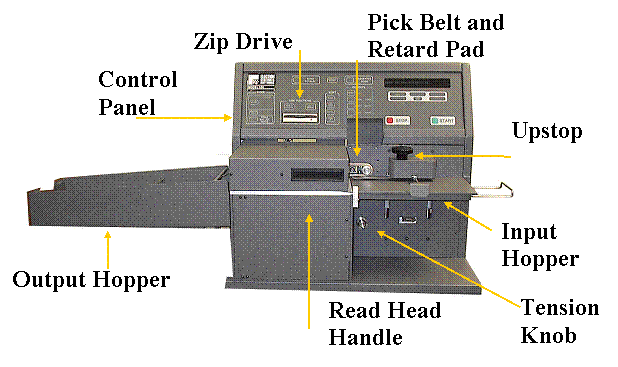
Checking Supplies and the Equipment
1.
 1 power cord for the scanner
2.

 1 power strip
3.
Printer
power cords
4.
1 pick belt
5.
1 retard pad
6.
1 box of 8.5” x 11,”
continuous feed, carbonless, three-part paper per printer
7.
 2
pressurized cans of air
2
pressurized cans of air
8.
1 clean
cotton cloth
9.
1 bottle of
Isopropyl rubbing alcohol
10.
12 sheets
of ½ inch-wide, small white or black adhesive labels
11.
1 PC
formatted zip disk for election results
12.
1 spare printer
ribbon per printer
13.
1 Model 650
User’s Guide
Inspecting
and Removing the Pick Belt
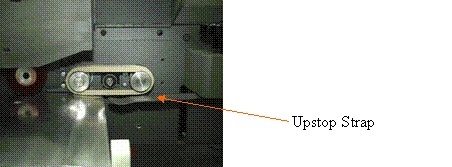
14. Make sure the scanner is off
and unplugged.
15. Lift the pick belt cover and
read head. It can also be helpful to lower and lock the input hopper in its
down position, and adjust the Upstop Knob so that the metal strap is lowered
out of the way.
16. Pull the old belt off the
right-side roller first and then remove it from the left-side roller.
17. Check the belt’s manufacture
date, which is printed on the inside of the belt itself. If the belt is expired (six months after
manufacture date) or worn, replace it.
If the belt is not expired, but it is dirty, then you can wash the belt
in warm to hot water to remove any debris.
PICK BELT ROLLER RETARD PAD PICK BELT ROLLER
Inspecting
and Cleaning the Retard Pad and the Pick Belt Rollers
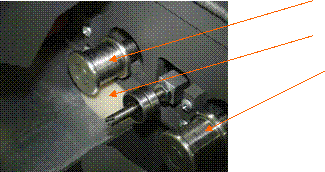
18. Inspect the retard pad. It should be light-colored and clean. If the pad is dirty, wipe it with a dry,
cotton cloth to absorb any ink. Apply
isopropyl rubbing alcohol to the cloth and clean it again if more cleaning is
necessary.
19. Replace the pad if the
ridges on the pad itself are worn down.
Using the tuning screwdriver stored in the back of the scanner, lift the
edge of the pad until it is above the metal surface. Place the new pad into position beneath the
pick belt rollers with the flat surface down, tapered edge to the right, and
pop the pad into place with the screwdriver.
DO NOT REMOVE THE MASKING TAPE UNDER THE RETARD PAD UNLESS DIRECTED TO
DO SO BY AN ES&S TECHNICIAN.
20. Clean the pick belt rollers by
applying isopropyl rubbing alcohol to a cotton cloth and wiping the visible
surfaces of the rollers.
21. Turn the rollers as you
clean to expose the entire roller surface.
22. Stretch the new pick belt as
you would a balloon before inflating it.
23. Rub your finger across the
surface of the pick belt. In one
direction it will feel smooth and the other rough. You must ensure that the rough edge is
positioned to make contact with the ballots. Loop the new pick belt
around the left-side roller first and then around the right-side roller until
it fits into place. You may turn the Manual Advance Knob to roll the belt onto
the rollers and center it.
 Cleaning the Fiber Optic
Sensors
Cleaning the Fiber Optic
Sensors
24. Clean the sensors with a
dry, cotton cloth or by using a pressurized air can to blow any debris or paper
dust collected during scanner operation.
When using a pressurized air can, hold the can upright to avoid spraying
any liquid propellant onto the scanner.
Cleaning the Feed Path
25. Using a cloth lightly
dampened with rubbing alcohol, wipe any smudges and smears from the feed path.
26. Close the read head and pick
belt cover. Raise the input hopper and re-adjust the Upstop Knob to raise the
strap.
Connecting the Printers and Loading the Printer Paper
27. Connect the printers to the
scanner using standard printer cables.
The scanner connection is located to the left of the ON/OFF switch on
the lower left side of the scanner.
28. Refer to your printer’s
User’s Manual to properly load paper in the printer.
29. Advance the paper so that
the top of a new page rests at the top edge of the print carriage.
30. Turn the printers on. The
power switches are located on the right side at the rear of the printers.
Installing the Output Hopper
31. Line up the output hopper
slide with its corresponding slot located on the left side of the scanner.
32. Slide the hopper down making
sure that the top edge of the hopper is below the feed path.
33. Adjust the length of the
output hopper to match the length of the ballots being used for the election.
The hopper is adjustable to accommodate all ballot lengths.
Initializing the Scanner
34. Insert the female end of the
scanner power cord into the male connector located on the lower left side of
the scanner.
35. Plug the scanner and both
printers into a power strip.
36. Plug the power strip into an
outlet.
37. Insert the zip disk with the
election definition into the zip drive.
38. Turn the scanner on. The power switch is located on the lower left
side of the scanner. This message will
appear once the scanner has initialized:
“Press Stop to Keep
XXXXX (name of election currently in the
machine).
Press Start to Load
XXXXX (Zip) (name of election on the zip disk)”
39. Press START to load the new election definition from the zip disk into
the scanner.
40. The following message is
displayed:
“Confirm:
Initialize Election?”
Press Stop to cancel, Start
to continue.”
41. Press START. If there were
election totals saved to the election definition Zip disk, the M650 will
automatically load them as well. If this is the case, this message will be
displayed:
“Totals
Present in Database”
“Zero Totals or Press Start
to continue”
**If you did not receive this message,
proceed to step #44.
42. Simultaneously press the ENABLE
and ZERO TOTALS buttons. The following message will appear:
“Confirm: Zero Totals?”
“Press Stop to cancel, Start
to continue”
43. Press Start.
44. “Ready for regular counting” will appear, the READY light will come on and the report format will set itself to SHORT.
45. Check the scanner’s printout
(the Machine Readiness Report) for the correct jurisdiction and date and type
of election. Check the accuracy of the
Checking Program Configuration section, the Checking Election Options section,
and the Checking Hardware Configuration section. Contact ES&S Customer Service at
1-877-377-VOTE (8683) immediately if any of the printed information is
incorrect.
46. Remove the election
definition zip disk and store it in accordance with the election staff’s
procedures.
Checking the Accuracy of the
Election Definition
**If
you zeroed totals in step 42 above, skip to step #51
47. Simultaneously press the ENABLE and ZERO TOTALS buttons to ensure the scanner has cleared all previous
election data from its memory.
48. The following message will
appear:
“Confirm: Zero Totals?”
“Press Stop to cancel, Start
to continue”
49. Press Start.
50. “Totals have been set to Zero” will appear, the READY light will come on and the report format will set itself to SHORT.
51. Confirm that the ON-LINE lamp is lit. If it is not, press SELECT until the light comes on.
52. Gently, press the input
hopper tray down until it locks in its DOWN position.
53. Correctly orient the ballots
so that they are facing up with the cut in the top right corner.
54. Place the ballots on the
input hopper tray so that the ballots are facing up with the cut corner sitting
on top of the retard pad.
55. Tap the ballots lightly
until they are flush against the two metal sides of the input hopper.
56. Gently press the input
hopper down and release it so that it rises up even to the feed area.
57. Adjust the white finger
guide so that it rests approximately one dime’s width from the edge of the
stack of ballots.
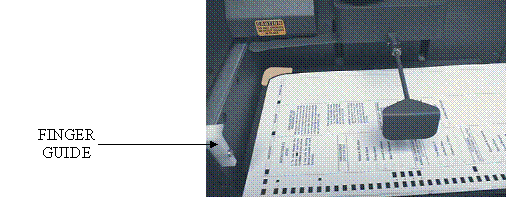
58. Turn off any active SORT
options by pressing the buttons in the SORT area of the control panel until all
lights are off. Press START to scan
the test deck of ballots.
59. After the scanner has
completed scanning the ballots, press the SAVE
button to save the results to the scanner’s internal drive. A message confirming the number of ballots
scanned, saved, and sorted, will be displayed.
60.
**NOTE: You will not be able to print any reports
until you have saved the results to the internal drive.
61. Press the FORMAT button in the REPORTS area of the control panel so
that LONG lights up.
62. To print both a GRAND TOTALS and a TOTALS BY PRECINCT report, simply press the button to the left of GRAND TOTALS and after the printer
stops, press the button to the left of the TOTALS BY PRECINCT. Make
sure that the paper does not feed itself back into the back of the printer.
63. Check that the reports
reflect the appropriate test deck results.
If the results match, continue with the next step.
**NOTE: If results do not match,
perform the test again by completing Steps 47-63.
If the results still do not match after the second test, call ES&S
Customer Service at 1-877-377-VOTE
(8683) for assistance.
64. Save the results to a zip
disk by inserting a disk into the disk drive, wait for the drive activity light
to go out, and then simultaneously press ENABLE
and SAVE. The following message is displayed:
“Confirm: Save totals to transfer disk”
“Press Stop to cancel, Start to continue”
65. Press Start. When the
scanner is finished storing results to the disk, the message, “Totals copied to transfer disk” will
appear.
66. If you will be using ERM
for Election Day reporting, transfer the election results from the Zip disk
into Election Reporting Manager. Print
the election reports and confirm that the results match the results from the
scanner’s reports. Refer to ERM Manuals and checklists for procedures.
If they match, call ES&S Customer Service at
1-877-377-VOTE (8683) to report your results.
If they do not, STOP. Perform the test again by completing Steps
47-66.
If the results still do not match after the second
test, call ES&S Customer Service at 1-877-377-VOTE (8683) for assistance.
67. Once the test is successful,
power off the scanner and the power switch on the power strip. Leave the printers connected to the scanner.
68. Remove the output hopper.
69. Remove the pick belt.
70. Leave the input hopper in
its unlatched, UP position.
71. Cover the scanner with its
dust cover.